The first time I tried adding a YouTube link to Claude, I thought it would watch the video and give me a complete summary.
That didn’t happen.
Claude gave me a detailed answer, but after I watched the video myself, I noticed that several points were wrong. It had not watched the video. Instead, it guessed the topic by looking at the title and the channel name.
At first, I thought I was using Claude the wrong way. After trying different methods on many YouTube videos, I realized that this is how Claude normally works.
If you are getting similar results, don’t worry. You are not making a mistake. Claude simply needs more information than a YouTube link.
In this guide, I’ll share the methods that worked best for me. I also found a few useful tricks that many other guides don’t mention.
My Experience Using YouTube Links With Claude
I tested these methods while researching blog topics and watching long YouTube tutorials. My goal was simple. I wanted Claude to save time by summarizing videos instead of watching every minute myself.
After trying different approaches, I found that the quality of the answer depends completely on the information you give Claude. A YouTube link alone rarely gives a reliable result, but a transcript almost always does.
Now, whenever I use Claude with YouTube videos, I always make sure it has the transcript before asking any questions.
Why a YouTube Link Alone Doesn’t Work
Claude can understand text, documents, images, and PDFs. However, it cannot open a YouTube video, play it, or listen to the audio like a person can.
When you paste only a YouTube URL into Claude, it only sees a web link. It does not know what the speaker said or what happened inside the video.
So why does Claude sometimes give a summary anyway?
It usually looks at the video title, channel name, or other public information. Then it tries to predict what the video is about. Sometimes the answer sounds believable, but it may include information that was never mentioned in the video.
This is one of the biggest reasons people think Claude is making mistakes.
What I Found During My Testing
To understand how accurate Claude really was, I tested it with ten different YouTube videos.
First, I pasted only the YouTube link and asked Claude to summarize the video.
Most of the summaries sounded convincing, but after comparing them with the real videos, I found that many important details were missing or incorrect.
Next, I copied each video’s transcript and gave it to Claude with the same prompt.
The difference was easy to notice.
The summaries became much more accurate. Claude explained the main ideas correctly, found useful points, and answered follow up questions much better.
From my experience, the transcript is the key. Once Claude has the actual text from the video, its answers become far more useful than when it only sees the link.
Method 1: Copy the YouTube Transcript and Paste It Into Claude
This is the easiest method, and it’s the one I use most often.
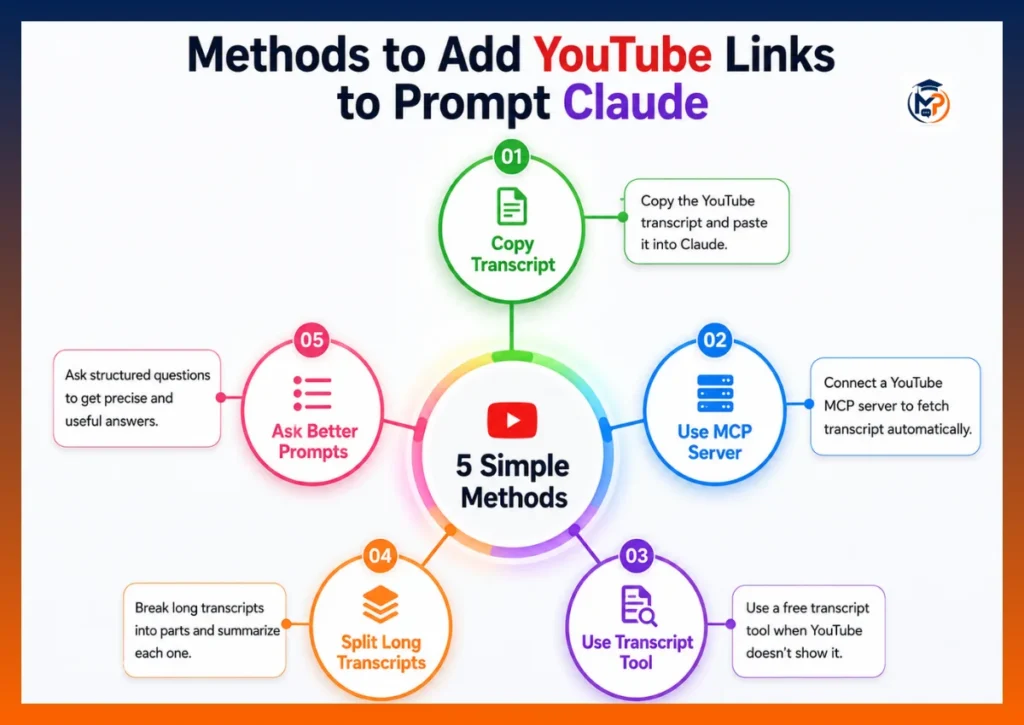
It doesn’t require any extra software, browser extensions, or paid tools. If you only need to summarize a few YouTube videos every month, this method is more than enough.
Step 1: Open the YouTube Video
Go to the YouTube video you want Claude to understand.
Below the video description, click Show transcript. On some videos, you may need to click the three dot menu first to see this option.
If the video has captions, YouTube will display the full transcript.
Step 2: Copy the Transcript
Select the transcript and copy all the text.
Don’t worry if the transcript includes timestamps. Claude can understand them, and they can even help when you ask questions about specific parts of the video.
Step 3: Paste Everything Into Claude
Now open Claude and paste the transcript into your chat.
After the transcript, write a clear prompt.
For example:
Read this YouTube transcript and summarize it in simple language. Also list the five most useful points.
You can also ask questions like:
- Explain this video like I’m a beginner.
- Find the biggest mistakes mentioned in this video.
- Create a blog outline from this transcript.
- Turn this video into LinkedIn posts.
Because Claude now has the full transcript, the answers are much more accurate than using only the YouTube link.
My Experience With This Method
I use this method whenever I need to understand a video quickly.
For videos that are around 10 to 20 minutes long, the entire process usually takes only a few minutes. Copy the transcript, paste it into Claude, and ask your questions.
Most of the time, the results are accurate enough that I don’t need to watch the full video unless I want more details.
The only downside is that this method depends on the video having captions. If there is no transcript, you’ll need another solution.
Things to Check Before Using the Transcript
Before asking Claude to analyze the transcript, I always do one quick check.
Sometimes YouTube’s automatic captions spell names, product names, or technical words incorrectly.
It only takes a few seconds to scan the transcript, but it can prevent mistakes later.
If you’re creating a blog post, research article, or client work, this small step is worth doing.
Method 2: Connect a YouTube MCP Server
If you work with YouTube videos every week, copying transcripts again and again can become slow.
That’s where an MCP server can help.
MCP stands for Model Context Protocol. It allows Claude to connect with external tools that provide information it cannot access on its own.
For YouTube, an MCP server can automatically collect useful information like:
- Video transcript
- Video title
- Description
- Channel details
- Video metadata
- In some cases, channel analytics
Instead of copying the transcript yourself, you simply paste the YouTube link into Claude, and the connected tool sends the transcript automatically.
How to Set Up an MCP Server
The setup process depends on whether you use Claude Desktop or Claude on the web.
For Claude Desktop, you’ll usually need to:
- Install the MCP server.
- Add its settings to your Claude configuration file.
- Restart Claude.
For Claude.ai, go to Settings and open the Connectors section.
If your connector supports YouTube, follow its setup instructions and connect your account.
After everything is connected, using YouTube with Claude becomes much easier.
Is an MCP Server Worth Using?
From my experience, it depends on how often you work with YouTube videos.
If you only summarize one or two videos each month, manually copying the transcript is faster.
But if you’re a content creator, blogger, SEO professional, researcher, or YouTuber who studies many videos every week, an MCP server can save a lot of time.
Once it’s set up, you don’t have to repeat the same copy and paste process for every video.
My Experience Using an MCP Server
I tested both manual transcripts and an MCP setup.
For occasional research, I still prefer copying the transcript because it’s simple and doesn’t require any setup.
However, when I needed to analyze several competitor videos in one day, using an MCP server made the workflow much faster.
I could spend more time asking Claude questions and less time collecting transcripts manually.
That small time saving becomes noticeable when you’re working with multiple videos.
Method 3: Use a Free YouTube Transcript Tool
While testing different YouTube videos, I found another problem.
Sometimes the Show transcript option simply doesn’t appear. This happened to me on a few mobile browsers and some videos with limited captions.
At first, I thought the video didn’t have a transcript. Later, I found that several free transcript websites and browser extensions could still extract the captions in just a few seconds.
This became my backup method whenever YouTube didn’t show the transcript button.
How It Works
The process is very simple.
- Copy the YouTube video link.
- Open a YouTube transcript tool.
- Paste the video link.
- Copy the transcript that the tool generates.
- Paste the transcript into Claude.
- Ask Claude your question.
The workflow is almost the same as Method 1, but you don’t have to depend on YouTube showing the transcript option.
When I Use This Method
I mostly use this method when:
- The Show transcript button is missing.
- I’m using my phone and can’t easily find the transcript.
- YouTube’s layout changes and the transcript becomes difficult to locate.
Instead of spending several minutes searching for the transcript, I simply use a transcript tool and continue working.
It saves time, especially when I have several videos to analyze.
My Experience
During my testing, I noticed that about one out of every six videos gave me trouble when trying to open the transcript directly on YouTube.
Using a transcript tool solved the problem almost every time.
That’s why I now keep this method as my backup option whenever the normal YouTube transcript isn’t available.
Method 4: Split Long Transcripts Into Smaller Parts
This is one of the biggest mistakes I made when I first started using Claude.
I copied the entire transcript from a long podcast and pasted everything into one prompt.
The transcript was huge.
Claude still answered, but the summary missed several important topics that appeared later in the video.
After testing different approaches, I found a much better way.
Why Long Transcripts Can Be a Problem
A one hour YouTube video can easily create a transcript with more than 10,000 words.
A two hour interview or podcast can be much longer.
When you paste a very large transcript into one prompt, Claude may focus more on the beginning of the text and give less attention to later sections.
The result is often a summary that skips useful information.
The Simple Solution
Instead of pasting everything together, divide the transcript into smaller sections.
For example:
- Part 1
- Part 2
- Part 3
Ask Claude to summarize each section one by one.
After all the parts are finished, ask Claude to combine those summaries into one final report.
This simple workflow gives much better results.
Example Prompt
You can use a prompt like this:
This is Part 1 of 3 from a YouTube transcript. Read it carefully and create a detailed summary. Wait for the remaining parts before creating the final summary.
After sending all the sections, you can ask:
Combine all three summaries into one complete summary. Remove repeated points and organize everything under clear headings.
Claude handles this process much better than trying to understand one extremely long transcript.
My Experience
I tested both methods using a podcast that was almost two hours long.
The first time, I pasted the entire transcript into Claude.
The summary looked good at first, but after comparing it with the actual podcast, I noticed several important discussions were missing.
Then I repeated the test by splitting the transcript into three smaller parts.
The final summary was much more complete. Claude covered every major topic and organized the information in a much clearer way.
Now I always split long transcripts before asking Claude to analyze them.
It takes only a minute longer, but the quality of the final answer improves a lot.
Quick Tip
As a simple rule, if a YouTube video is longer than 30 to 40 minutes, I recommend breaking the transcript into smaller sections.
For short videos, you can usually paste the whole transcript without any problems.
For long podcasts, interviews, webinars, and online courses, splitting the transcript is the better choice.
Method 5: Ask Better Prompts Instead of Only Asking for a Summary
Most people paste a transcript into Claude and simply write:
Summarize this video.
There is nothing wrong with that, but you can get much better results by asking more specific questions.
The more details you give Claude, the more useful the answer becomes.
After using Claude for many YouTube videos, I found that asking focused questions saves time and gives better information.
Instead of getting one general summary, I receive exactly what I need.
Prompts I Use Most Often
Create a Simple Summary
If I don’t have much time, I use this prompt.
Read this YouTube transcript and explain the main ideas in simple language. Keep the summary short and easy to understand.
This works well for tutorials, interviews, and educational videos.
Find Actionable Tips
Sometimes I don’t want a full summary. I only want useful advice.
In that case, I ask:
Read this transcript and list only the practical tips that someone can use today.
This removes unnecessary information and focuses only on useful points.
Turn the Video Into a Blog Post
One of my favorite ways to use Claude is turning a YouTube video into written content.
I use a prompt like this:
Convert this transcript into a detailed blog post with headings, examples, FAQs, and a conclusion.
This gives me a strong first draft that I can edit and improve.
Create Social Media Content
If the video has useful information, I also ask Claude to create social media posts.
For example:
Create five LinkedIn posts, five X posts, and three Instagram captions from this transcript.
Instead of creating content from scratch, I can reuse the same video for different platforms.
Find Important Numbers and Facts
Sometimes videos include useful statistics or research.
Instead of searching manually, I ask:
Find every important number, statistic, and fact mentioned in this transcript. Explain why each one is important.
This is very helpful when writing articles or doing research.
My Experience
At first, I always asked Claude to “summarize this video.”
The summaries were good, but they were often too general.
Once I started asking more detailed questions, the answers became much more useful.
Now I rarely ask for only a summary.
Instead, I ask Claude to explain ideas, find key points, create blog content, and organize information into tables or lists.
A better prompt almost always leads to a better answer.
What Claude Still Cannot Do With YouTube Videos
Even if you give Claude the complete transcript, there are still some things it cannot understand.
Many people think Claude can fully analyze a YouTube video after reading the transcript.
That isn’t true.
Claude can only understand the text it receives.
If something appears only on the screen and is never spoken, Claude usually won’t know about it.
Claude Cannot Watch the Video
Claude does not play YouTube videos.
It cannot see what happens during the video like a human can.
It only reads the transcript or any information you provide.
Claude Cannot Hear Music or Sound Effects
If background music changes the mood of the video, Claude won’t know that.
It also cannot understand sound effects, audience reactions, or changes in voice unless those details are written in the transcript.
Claude Cannot Describe Visual Details
Many YouTube creators teach using:
- Charts
- Graphs
- Slides
- Images
- Product demonstrations
- Screen recordings
If those visuals are not explained in the transcript, Claude cannot describe them accurately.
Claude Cannot Read Text That Never Appears in the Transcript
Sometimes a video shows important information only on the screen.
For example:
- Website URLs
- Discount codes
- Product prices
- Charts
- Tables
- Presentation slides
If the speaker never says these things out loud, they usually won’t appear in the transcript.
Claude cannot guess that missing information.
Claude Cannot Verify Whether the Speaker Is Correct
Claude can explain what the speaker said, but it cannot automatically confirm that every claim is true.
If the video includes statistics, health advice, financial tips, or technical information, it’s always a good idea to verify the facts using trusted sources.
What You Can Do After Adding a YouTube Transcript to Claude
Once Claude has the transcript instead of only the YouTube link, it becomes much more useful. Instead of asking for a basic summary, you can use Claude for many different tasks that save time and improve your work.
Here are some of the best ways to use Claude after adding a YouTube transcript.
Summarize Long YouTube Videos
One of the most common uses is creating a summary.
Instead of spending an hour watching a podcast or tutorial, you can ask Claude to explain the main ideas in a few minutes.
You can also choose the type of summary you want.
For example, ask Claude to create:
- A short summary
- A detailed summary
- Key takeaways
- Step by step notes
- A beginner friendly explanation
This works well for webinars, interviews, tutorials, and educational videos.
Find Important Points Quickly
Sometimes you don’t need the entire summary.
You may only want information about one topic.
For example, you can ask:
- What did the speaker say about SEO?
- What are the biggest mistakes mentioned in this video?
- What tools does the presenter recommend?
- What advice is given for beginners?
Claude searches the transcript and finds the relevant information much faster than reading the entire transcript yourself.
Turn the Video Into a Blog Post
If you’re a blogger or content writer, this is one of the most useful features.
Ask Claude to convert the transcript into a complete blog article with headings, subheadings, examples, FAQs, and a conclusion.
You can then edit the draft, add your own experience, and publish a unique article instead of starting from a blank page.
Create Social Media Content
A single YouTube video can become content for several social media platforms.
Claude can help you create:
- LinkedIn posts
- X posts
- Instagram captions
- Facebook posts
- YouTube Community posts
This makes it easier to reuse one piece of content across different platforms.
Create Notes for Study
If you’re watching educational videos, Claude can turn long lessons into easy notes.
You can ask it to:
- Explain difficult topics in simple words.
- Create revision notes.
- Make a checklist.
- Generate flashcards.
- Write practice questions.
This is helpful for students and anyone learning a new skill.
Find SEO Ideas
Many YouTube videos answer questions that people search for on Google.
You can ask Claude to:
- Find important keywords.
- Suggest blog titles.
- Generate FAQ questions.
- Create article outlines.
- Find related topics to write about.
This is especially useful for bloggers and SEO professionals.
Compare Multiple Videos
You can also compare two or more YouTube transcripts.
For example, ask Claude to:
- Compare two tutorials.
- Find the differences between two speakers.
- List common advice.
- Show where opinions are different.
This saves a lot of time when researching a topic from different creators.
Common Mistakes to Avoid
Many people think Claude is not working correctly, but the real problem is usually how they use it.
Avoid these common mistakes to get better results.
Expecting Claude to Watch the Video
Claude cannot watch YouTube videos.
It only understands the text that you provide.
If you only paste the video link, Claude does not know everything that happens in the video.
Always provide the transcript whenever possible.
Using Videos Without Captions
Some YouTube videos do not have captions or transcripts.
Without text, Claude has very little information to work with.
If the transcript is missing, try using a transcript extraction tool before asking Claude to summarize the video.
Pasting a Very Long Transcript at Once
Very large transcripts can make the conversation harder to manage.
If the video is longer than 30 or 40 minutes, divide the transcript into smaller sections.
Summarize each section first, then ask Claude to combine everything into one final summary.
This usually gives much better results.
Using Very Short Prompts
A prompt like:
Summarize this.
will work, but it won’t give you the best answer.
Instead, explain exactly what you want.
For example:
Read this transcript and explain the main ideas in simple language. Also list five useful tips and create a short conclusion.
Clear prompts usually produce better answers.
Trusting Every Answer Without Checking
Claude is very good at understanding transcripts, but it can still make mistakes.
If you’re writing about health, finance, law, or technical topics, always verify important facts before publishing or sharing the information.
Forgetting to Edit the Final Output
Claude creates an excellent first draft, but you should always review it before using it.
Add your own examples, remove anything unnecessary, and make sure the writing matches your style.
Even a few minutes of editing can make the final content much better.
Final Thoughts
Learning how to add YouTube links to prompt Claude is easier than most people think.
The biggest mistake is expecting Claude to understand a YouTube video from the link alone. A YouTube URL only tells Claude where the video is. It doesn’t tell Claude what the speaker actually said.
The best approach is simple. Give Claude the transcript first, then ask clear and detailed questions.
For occasional use, copying the transcript is quick and free.
If you regularly summarize YouTube videos for research, blogging, SEO, or content creation, using an MCP server or another transcript tool can make your workflow much faster.
No matter which method you choose, remember one thing. Claude works best when it has real text to read. The better the transcript and the better your prompt, the more accurate and useful the final answer will be.
Start with a short YouTube video, copy the transcript, and try a few different prompts. Once you see the quality of the answers, you’ll understand why using a transcript gives much better results than pasting only a YouTube link.
Also Read: