

If you’ve been coding with Claude and suddenly hit a wall that says your Claude Code prompt is too long, you’re not alone. This is one of the most common errors developers run into, especially when working on bigger projects with lots of files, logs, and instructions.
The good news? It’s almost always an easy fix. Let’s break it down step by step.
What Does “Prompt Is Too Long” Actually Mean?
Every AI model, including Claude, has something called a context window. Think of it like a desk. You can only fit so many papers on that desk at once.
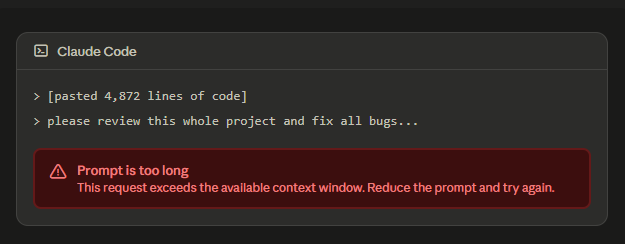
When you paste in an entire codebase, a huge error log, or a long chat history, you’re basically stacking more papers than the desk can hold. Once it’s full, nothing new can be added and that’s when the error pops up.
This isn’t a bug. It’s a built-in limit that keeps the AI from getting overloaded.
Why This Happens So Often in Claude Code
Claude Code is built for real development work, so people naturally paste in a lot of context to help it “understand” the project. That usually includes:
- Full source code files
- Long documentation
- Error logs and stack traces
- Old conversation history
- Multiple tasks bundled into one message
Any one of these can be fine on its own. Stack them all together, and you’ll trigger the limit fast.
How to Fix “Prompt Is Too Long” in Claude
Step 1: Cut the Fluff
Before anything else, go back through your prompt and remove anything that isn’t essential. Long intros, background explanations, and repeated context all take up space Claude doesn’t need.
Ask yourself: Does Claude actually need this line to solve my problem? If not, cut it.
Step 2: Share Only the Relevant Code
This is the single biggest fix for the prompt being too long and Claude errors. Don’t paste your whole project. Paste only the file, function, or section that’s actually connected to the task.
Debugging one function? Share that function and the error message — not the entire application.
Step 3: Break Big Tasks Into Smaller Prompts
If your request naturally covers a lot of ground, split it up. Instead of asking Claude to review, debug, and refactor everything in one shot, handle each step in its own message.
This keeps things focused and, as a bonus, usually gets you better answers too — Claude performs best on Claude Code prompts when it isn’t juggling five tasks at once.
Step 4: Use the “Chunking” Method for Long Text
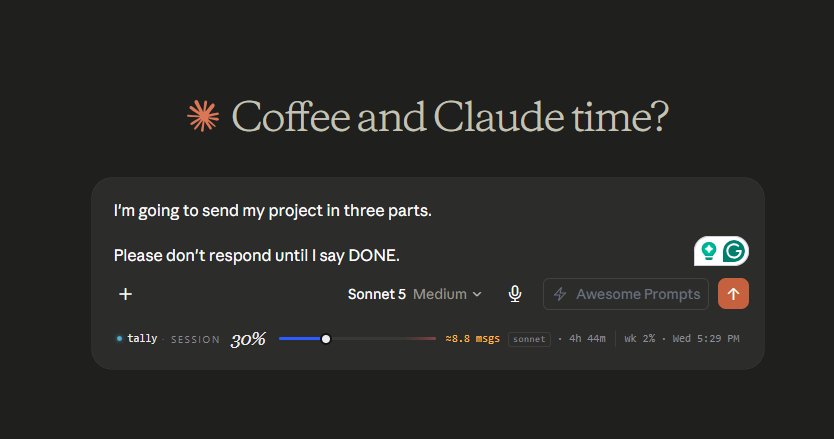
When you truly have a large document or codebase to share, don’t dump it all at once. Split it into labeled parts — Part 1 of 3, Part 2 of 3, and so on — and send them one message at a time.
Tell Claude upfront: “I’m going to send this in three parts. Please wait until I say I’m done before responding.” This stops Claude from trying to answer halfway through your context.
Step 5: Upload Files Instead of Pasting Text
If a document or code file is large, upload it as a file (PDF, .txt, .py, etc.) instead of pasting the raw text into the chat box. Claude generally handles attached files more efficiently than a giant wall of pasted text.
Step 6: Start a Fresh Conversation
Long chat threads carry their entire history forward, even the parts you no longer need. If you’ve been in the same conversation for hours, that accumulated history could be what’s pushing you over the limit.
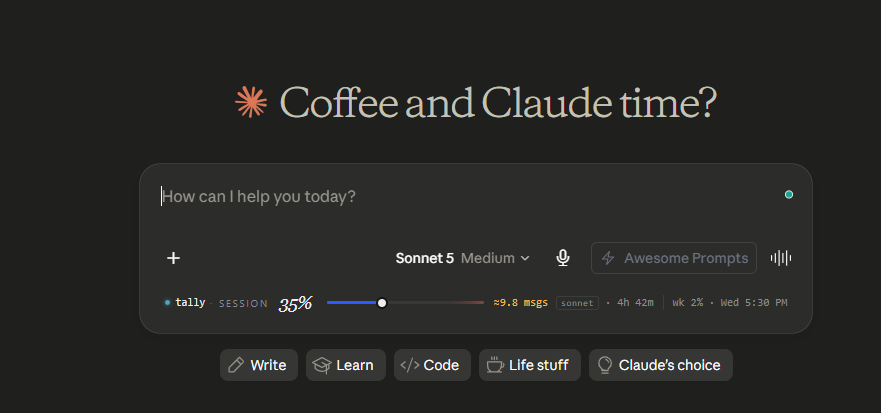
Start a new chat and give Claude a short, one or two sentence recap of what’s already been done. You’ll get the reset without losing your progress.
Step 7: Try a Different Model
Different models can handle context differently. If you’re stuck on Claude Code prompt is too long errors, it’s worth switching to another available model and re-running the same prompt to see if it processes.
Step 8: Ask for a Partial Response First
If your prompt is fine but you’re asking for an extremely long output in return, Claude may flag it preventively. In that case, ask for a summary or the first section of the response instead of the entire thing at once.
Claude Step-by-Step Workflow That Always Works
Whenever you see claude code prompt is too long, follow this simple process:
Step 1
Identify exactly which file has the problem.
↓
Step 2
Copy only that file.
↓
Step 3
Include the exact error message.
↓
Step 4
Explain what you’re trying to achieve.
↓
Step 5
Ask one clear question.
This workflow avoids unnecessary context and usually gives much better answers.
Example of a Bad Prompt
Here’s my entire project.
It has 87 files.
Please review everything, fix every bug,
optimize performance,
rewrite the architecture,
add authentication,
write tests,
and explain every line.
This prompt is far too broad and likely to trigger the error.
Example of a Good Prompt
I’m building a React application.
The login page throws this error:
Cannot read property ‘user’ of undefined
Here’s LoginForm.tsx and auth.ts.
Please identify the cause and suggest the fix.
Notice how the second prompt is short, focused, and easy for Claude to understand.
Claude vs Code Prompt Is Too Long: A Quick Note
If you’ve searched for Claude vs code prompt is too long, you’re likely trying to figure out whether this issue is specific to Claude Code or applies to Claude in general. It’s the same root cause either way — a full context window — but Claude Code tends to hit it more often simply because developers paste in more code and logs than the average chat user.
The fix is the same across both: keep prompts focused, split large tasks, and start fresh threads when conversations get long.
Best Practices to Avoid This Error
Following a few simple habits can prevent the problem before it happens.
- Work on one task at a time instead of combining multiple requests.
- Share only the files related to the issue you’re solving.
- Keep prompts short, specific, and focused.
- Start a new chat after long conversations.
- Summarize previous work instead of repeating the full history.
- Upload large files when appropriate instead of pasting thousands of lines.
- Ask Claude to solve problems step by step rather than all at once.
These practices improve both response quality and development speed.
Final Thoughts
Bigger prompts aren’t always better prompts. Claude tends to give sharper, more accurate answers when it’s working with focused, relevant context instead of an entire project dumped into one message.
A few small habit changes — trimming the fluff, chunking large files, and starting new chats when needed — will keep your Claude Code workflow running smoothly and help you avoid this error for good.
Frequently Asked Questions
Why does Claude say “Prompt is too long”?
Claude shows this message when the combined size of your prompt, attachments, conversation history, and expected response exceeds its available context window.
How to fix prompt is too long Claude?
The easiest solution is to remove unnecessary information, share only the relevant code, split large requests into smaller parts, or start a new conversation if your current chat has become too long.
Does starting a new chat fix the problem?
Yes. A fresh chat removes the accumulated conversation history, freeing up context space. Include a short summary of your previous progress so Claude has the necessary background.
Also Read: